
How to Complete PowerPoint Download with Your Existing License
Recycling a current Microsoft license saves time, is authentic, and does not cause unnecessary payments. Microsoft associates every license with an individual or organizational account. This relationship enables one to re-install applications such as PowerPoint without typing the product keys. The process is convenient and very secure to new as well as returning users. It is also useful in keeping software legitimate and safe. The current licenses cover various editions, such as Microsoft 365 subscriptions, standalone versions of Office 2021, and older perpetual versions, such as Office 2019 or Office 2016. Regardless of whether Powerpoint was included as part of the operating system or was bought on the internet, by connecting it properly, one can reinstall it and activate it without any problems. Direct reinstalls are often beneficial to many users since they can restore productivity tools immediately, without having to rely on third-party sellers or manual license code entries. This guide focuses on completing PowerPoint download using your existing, legitimate license—without additional purchases or complex activation steps.
Understanding Microsoft License Linking
The linked license of Microsoft is an activation based on an account but not on a product key. As soon as a license is linked to your Microsoft account, it is considered to be a part of your digital right. This implies that your PowerPoint, Word or Excel are logged in using your login and do not require a printed key.
The older versions like Office 2010 used product key activation. By comparison, more recent versions such as Microsoft 365 or Office 2021 will automatically connect to your account when installed. This will eliminate loss or theft of license information and can be installed online at any time. In order to check a connected license, go to the Services and Subscriptions section of account.microsoft.com. There, you will be able to see product details, device activations, and dates of subscription renewal. This page is your personal dashboard to all the Office services. It is also the safest to verify whether the activation is on or off and re-install applications.
Preparing Before You Download
Before PowerPoint is reinstalled, it is important to ensure that the Microsoft account with which it was purchased is active. Check twice that you have used the right email and password. In case you lose it, it can be recovered in a safe way with the help of Microsoft recovery tool. The second step is to make sure that your device is at minimum requirements. Windows 10 or later, macOS 10.14 or later, 4 GB RAM, and 4 GB disk space are required by PowerPoint 2021 and Microsoft 365. Stable internet connection is also required since the installation files are downloaded through the Microsoft servers. Supporting the existent presentation files is also important. Before re-installing, save them on OneDrive or external storage. This way, there will be no loss of data accidentally and all the projects will be available upon re-installation. Step-by-Step:
How to Download PowerPoint Using an Existing License
- Visit account.microsoft.com/services.
- Sign in using the Microsoft account associated with your purchase of PowerPoint or Office.
- Swipe to Services and Subscriptions. Find the license of Microsoft 365, office 2021, or other valid suite.
- Click Install beside the product name.
- Install the software as shown on the screen.
- Wait as the installer installs PowerPoint automatically.
After the installation is done, open PowerPoint and verify activation. Click on File Account Product Information. When the software indicates Product Activated, then your license is properly identified. Otherwise, leave and reenter with the same Microsoft account to initiate reactivation. This action legitimizes digital rights and associates PowerPoint with your legal license.
Troubleshooting Activation Problems or License
In other cases, PowerPoint might not be seen in the services and subscriptions. Then make sure that you are logged in using the right Microsoft account. When the account is not the same as that at the time of purchase, keep changing accounts until you locate the appropriate license. In case something such as Activation Failed or Product Key Not Valid appears, then you should attempt to run the Office Activation Troubleshooter which is found on the support page at Microsoft. The tool will automatically fix the majority of problems by updating your license status. Reinstallation can still fail in exceptional situations. Get in touch with Microsoft Support directly either by chat or phone. Order details or account verification can be used to recover your license with the assistance of support agents. Always save purchase confirmation mails and product receipts, they act as a testimony to ownership.
Troubleshooting License or Activation Issues
PowerPoint is not always found under the services and subscriptions. That being said, ensure that you are logged in using the right Microsoft account. In case the account does not match that which was used during purchase, change accounts until you get the appropriate license. In case there is an error such as the Activation Failed or Product Key Not Valid, then run the Office Activation Troubleshooter that is on the Microsoft support page. Most problems are automatically corrected with the tool which refreshes your license status. Even in isolated situations, reinstallation might still not be successful. Connect to Microsoft Support via chat or phone support. Order details or account verification can be used to recover your license with the assistance of support agents. Purchase confirmation emails and product receipts should be kept at all times as they are evidence of ownership.
Reinstalling on New or Repaired Devices
When changing a device or repairing it, it is important to transfer your license according to its conditions. Subscriptions of Microsoft 365 can be installed on several devices at the same time. Nevertheless, the old computer will first have to be deactivated with single-computer Office 2021 or 2019 licenses. To turn it off, log in to your Microsoft account and delete the old device in the section under Devices. Install on new machine then. This is a method of compliance and eliminates activation errors. Never leave your login information unsecured. Multi-factor authentication is another security measure that will ensure your license is not accessed by someone unauthorized. Ensuring that the methods of recovering accounts are kept current will ensure that reinstalling the device is effortless in case of a change.
Maintaining Your PowerPoint Version Post-Download
Once installed successfully, allow automatic updates. This makes sure that PowerPoint is updated with the latest capabilities, bug fixes and security patches. To enable updates, open any Office application, select File Account Update Options and have the option of enabling updates.To manage files easily, integrate PowerPoint and OneDrive. By doing so, it will be possible to synchronize presentations between devices and have a version recovery in case of data loss. OneDrive has a cloud capability that allows you to view and make changes to slides anytime, anywhere. It is important to take care of your Microsoft account. Always change your password and do not share any login information. Recovery information should be updated in a way that ensures that recovery of accounts is easy in case of necessity. To streamline the workflow, combine PowerPoint with Excel online in the cloud and Outlook to make presentations based on data in your spreadsheets.
Smart Alternative: Reinstall-Free PowerPoint Creation via WPS Presentation
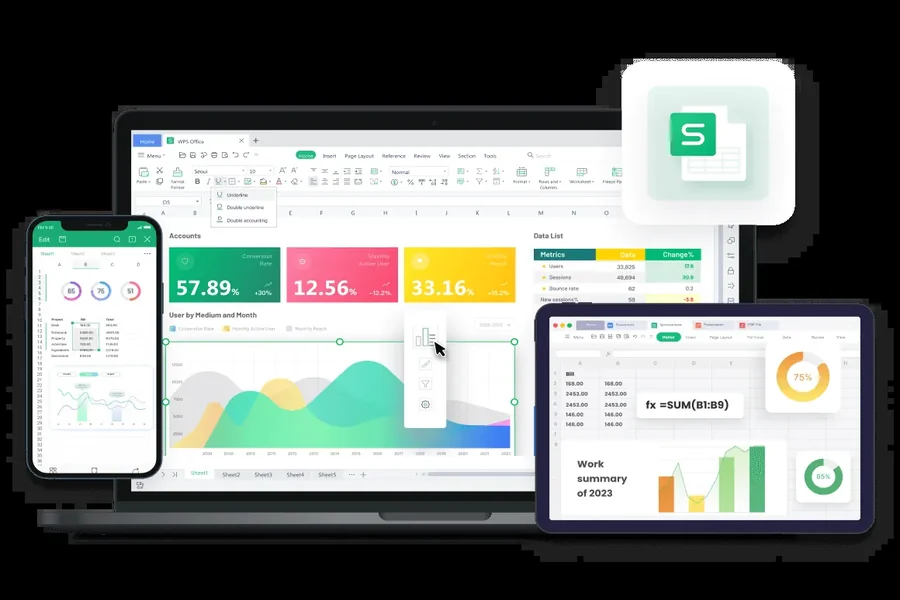
WPS Presentation is a fast, free of charge alternative in case the reinstatement of PowerPoint is not possible. The program is included in WPS Office, a worldwide productivity suite with more than 600 million monthly users. It can be compatible with ppt and pptx files and can operate smoothly on windows, macos, linux, android, and ios. WPS Presentation does not need any activation key and is therefore the best option to use when Microsoft credentials are not available. The application is offline, and it allows the creation of slides without using the internet. It is entirely compatible with PowerPoint layouts, transitions, and animations and maintains the accuracy of design. The software has got access to 100,000+ free templates, with business, academic, and creative themes. It has a clean interface that resembles that of Microsoft PowerPoint, which helps users to be immediately adaptable. WPS Presentation also offers AI-based templates, which improve the quality of designs and better the aesthetics of slides. Another point of emphasis is collaboration. WPS Office also makes presentations available on devices, which allows real-time editing and tracking of versions using a single account. Projects can be saved on-site or shared through cloud connections to work with the team in a different location. In addition to presentations, WPS Office provides Writer (to work with documents), Spreadsheets (to manage data), and PDF (to work with documents and presentations) free of charge. The portability of the suite and its multi-platform compatibility make it a great backup of any person who requires professional output without the need to reactivate the license. Text, image, and media encryption are also supported in WPS Presentation to ensure extra security. It has also the inbuilt file recovery option to recover work in case of sudden loss. The Chart Library and Concept Map are useful when visualizing information to make the creation of slides easier. With its simplicity, flexibility and creative freedom, WPS Presentation is an intelligent, free alternative to PowerPoint users all over the world.
Conclusion
When properly done, it is easy to complete a PowerPoint installation using your existing license. To secure the experience, it is better to verify your Microsoft account, check compatibility, and adhere to secure downloading. This will safeguard authenticity, lower costs, and maintain continuity among devices. When it is turned on, it is always possible to keep PowerPoint up to date and connect it with OneDrive so that it is always possible to access presentations everywhere. WPS Presentation is a reliable substitute when the retrieval of the license can be hard or when one needs a faster tool. It has professional level features and does not need reinstallation or activation keys. Knowing how to manage the licenses and discovering the newest tools such as WPS Office, you can be sure that you will be able to manage the presentations, keep the productivity, and create easily, regardless of the platform and circumstances.