
Keep Your PC Running Smoothly with Regular Cleaning and Driver Updates
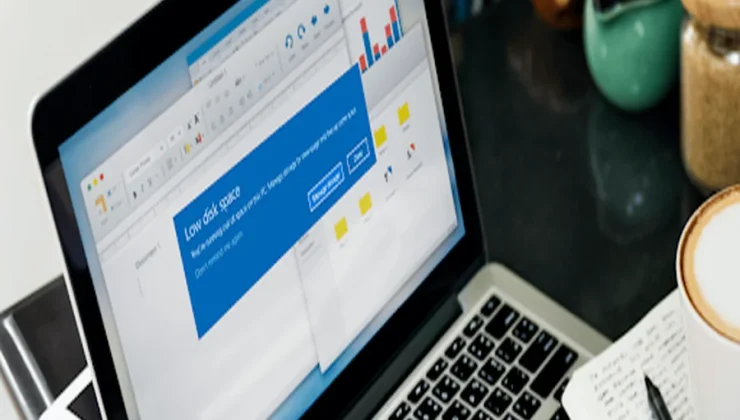
A computer can gradually become slower and less responsive over time, even if its hardware remains unchanged. Temporary files accumulate, unnecessary programs run in the background, and outdated drivers may create compatibility problems. Regular maintenance can help users keep their systems organized and running reliably. Using a PC cleaner and remembering to update drivers are two practical steps that can support better overall computer performance.
Why Does a PC Need Regular Maintenance?
Everyday activities create digital clutter. Browsing websites stores cache files, applications generate temporary data, and software installations can leave unnecessary files behind. These files may not cause immediate problems, but they can gradually consume valuable storage space.
A computer may also become difficult to manage when too many applications are installed or configured to launch automatically. Background programs can use system resources, increasing startup times and affecting responsiveness.
Regular maintenance helps users identify unnecessary data and review which programs are actually needed.
Common sources of PC clutter include:
- Temporary files
- Browser cache
- Application logs
- Old installation files
- Recycle Bin contents
- Unused programs
- Unnecessary startup applications
What Is a PC Cleaner?
A PC cleaner is a utility designed to scan a computer and identify files that may no longer be necessary. Instead of manually searching through multiple folders, users can review different categories of data through a single tool.
Depending on the software, a PC cleaner may identify temporary system files, browser data, application leftovers, log files, and other unnecessary items.
The main benefit is convenience. Manual cleanup can be time-consuming, especially for users who are unfamiliar with Windows system folders. A dedicated cleaning tool can organize potential cleanup items and allow users to review them before removal.
However, users should always check what is being deleted. Removing unknown system files manually can sometimes create software problems.
Benefits of Keeping Your PC Clean
Regular cleanup can help free storage space and make a computer easier to manage. When storage becomes nearly full, Windows and applications may have less room for temporary operations and updates.
A sensible PC cleaning routine may offer benefits such as:
- More available disk space
- Better file organization
- Fewer unnecessary files
- Easier system maintenance
- Reduced digital clutter
A PC cleaner should not be considered a solution for every performance issue. Slow performance can also be caused by insufficient RAM, aging hardware, overheating, malware, or demanding applications.
For this reason, cleaning should be part of a broader maintenance strategy.
Why You Should Update Drivers
Drivers are essential pieces of software that allow Windows to communicate with hardware devices. Your graphics card, network adapter, sound device, printer, and other components depend on compatible drivers.
Manufacturers periodically release updates to fix bugs, improve stability, and provide better compatibility with newer applications and operating system versions.
When you update drivers, you may receive improvements such as:
- Better hardware compatibility
- Bug fixes
- Improved system stability
- Support for newer software
- Security improvements
- Gaming optimizations
Graphics drivers are especially important for gamers because GPU manufacturers may release updates that improve compatibility with recently launched games.
How to Update Drivers Safely
Before installing a new driver, identify the exact model of your hardware. Using an incorrect driver can cause compatibility issues or unexpected behavior.
Windows Update can provide drivers for many common devices. Hardware manufacturers also provide official downloads and management applications for their products.
When you update drivers, downloading from official sources is generally the safest approach. Avoid unknown third-party websites that offer driver downloads, as outdated or modified files may cause security and stability concerns.
Creating a system restore point before making significant changes can also provide an additional layer of protection.
Combining Cleaning and Driver Maintenance
Using a PC cleaner and maintaining updated drivers can work well together as part of a simple maintenance routine.
Start by reviewing unnecessary files and removing data you no longer need. Check installed applications and uninstall programs that are no longer useful. Next, review startup applications to reduce unnecessary background activity.
After cleaning, check whether important hardware drivers need updates. Pay attention to graphics, network, and chipset drivers, particularly if you are experiencing performance or compatibility issues.
You do not need to perform every maintenance task daily. A periodic check is usually enough for most users.
A Simple PC Maintenance Routine
A practical routine can include the following steps:
- Run a trusted PC cleaner to review unnecessary files.
- Empty the Recycle Bin when appropriate.
- Check available storage space.
- Review installed applications.
- Disable unnecessary startup programs.
- Check Windows Update.
- Update drivers from trusted sources when needed.
- Restart the computer after major updates.
Following these steps can help users keep their systems organized without making unnecessary changes.
Final Thoughts
Maintaining a computer does not always require advanced technical knowledge. Simple habits such as using a reliable PC cleaner and choosing to update drivers when appropriate can help improve system organization, compatibility, and stability.
Cleaning unnecessary files helps manage storage, while updated drivers ensure that hardware can communicate effectively with modern software. When combined with regular updates, sensible software management, and basic security practices, these habits can help create a smoother and more reliable computing experience.