Set Up Timed Messages on iOS for Effortless Reminders
Timed messages transform the habit of remembering important notes into a hands-free routine. Whether you need to wish someone a happy birthday at midnight, remind a colleague about an invoice, or nudge yourself to follow up on a lead, setting up a message to go out at a particular time ensures nothing slips through the cracks. iOS offers several reliable approaches to schedule messages, from using built-in automation tools to leveraging third-party apps and simple reminder tricks. This article walks through practical, accessible methods so you can choose the one that fits your workflow.
Why scheduled messages are useful
A scheduled message removes the cognitive load of remembering dozens of small tasks. Delivering a message at the right moment can increase responsiveness and make communications feel more thoughtful. For professionals, scheduling follow-ups during business hours improves open rates. For friends and family, timely greetings show attention without requiring you to be awake at odd hours. Beyond convenience, timed messages can help you maintain boundaries: draft communications when your brain is calm and schedule them to send later, avoiding impulsive replies.
Using Shortcuts to send messages at a set time
Apple’s Shortcuts app provides a powerful way to automate sending messages. Start by opening Shortcuts and creating a Personal Automation. Choose “Time of Day” and set the time you want the message to send. Then add the “Send Message” action and craft the text, choosing the contact recipient. Before finalizing, turn off “Ask Before Running” to allow the automation to run without manual confirmation. This method is particularly strong when you need consistent, repeatable messages, such as weekly reminders or monthly bills. Keep in mind that the message will use the Messages app and send as iMessage or SMS depending on the recipient’s settings. Test the automation once to confirm it behaves exactly as expected, and remember you can edit or disable the automation anytime from Shortcuts.
A built-in search tip for learning more
If you want quick how-to guides or video walkthroughs, search engines and forums have many user-tested examples. For a focused query that returns tutorials and step-by-step visuals, try searching for how to schedule a text on iphone which will bring up resources specifically tailored to scheduling texts on iPhones. These guides often include screenshots of Shortcuts setups and demonstrate variations for recurring reminders and conditional automations.
Alternatives: Reminder-based workflows and third-party apps
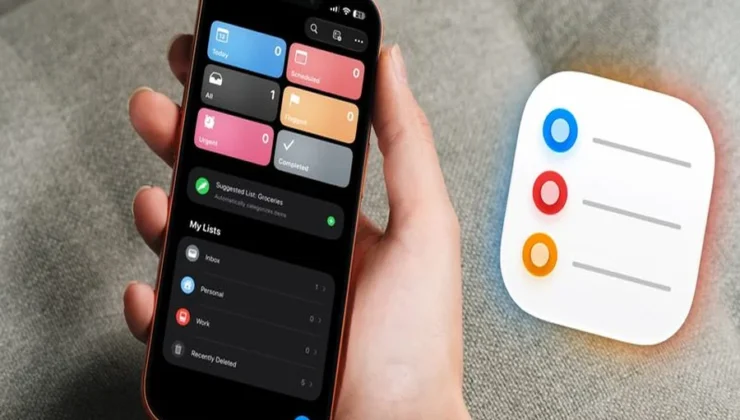
If you prefer to confirm every send or need a simpler approach, the Reminders app can act as an effective intermediary. Create a reminder that contains the message text and set it to alert at your chosen time. When the notification appears, copy the message into Messages and send it. This manual step guarantees you review the content before sending, useful for sensitive communications. For users seeking fully automated or cross-platform scheduling, third-party apps like Scheduled or other messaging schedulers can send or prompt messages at specified times. These services often offer extras like recurring schedules, message templates, and multi-channel sending, but they may require subscriptions and access to your contacts or notifications. Evaluate privacy policies and permissions before granting access.
Handling recurring messages and edits
For repeating reminders, the Shortcuts automation allows you to select daily, weekly, or monthly recurrence. Keep messages generic enough to be reusable, and insert variables when personalization is needed. If you need to change a scheduled message, edit the action inside Shortcuts, or if you used a third-party app, update the scheduled entry within that app. It’s a good practice to maintain a small library of frequently used templates in Notes or Shortcuts so edits are quick and consistent across campaigns or personal messages.
Privacy, permissions, and troubleshooting
Automations that send messages interact with personal data and will request appropriate permissions. Shortcuts may ask for access to your contacts and messaging capabilities; third-party apps will request additional privileges, like microphone or calendar access. Always inspect permission prompts and the app’s privacy policy. If a scheduled message doesn’t send, check that the device is powered and has a network connection at the scheduled time, and verify that the automation is enabled. Some restrictions apply when the phone is in low power mode or if the app has been force-closed. For messages that rely on carrier SMS, ensure you have sufficient signal and credits where applicable.
Best practices for professional and personal use
When scheduling messages for work, clearly identify the recipient and make the content concise and actionable. Timed messages for follow-ups should reference prior communication and include a clear next step. For personal messages scheduled for special occasions, consider timezone differences so recipients receive the message at an appropriate local time. Avoid sending highly emotional or important messages on autopilot; drafting during a calm moment and scheduling to send later can help, but always review the content before a recurring automation is set. Finally, maintain a small archive of scheduled automations so you don’t accidentally duplicate reminders or send outdated information.
Get started with a simple experiment
The easiest path to confidence is a short test. Compose a friendly message to a close contact or to another device you own and schedule it using Shortcuts or a reminder-based approach. Verify the delivery, tweak the timing, and try one recurring reminder. Once you’ve successfully executed a test, expand into more complex automations and templates. With a little setup, timed messages become a dependable part of your communication toolkit, freeing mental space and ensuring that the right words reach the right people at the right moment.