Microsoft Phone Link 2025 Guide: System Requirements
Introduction
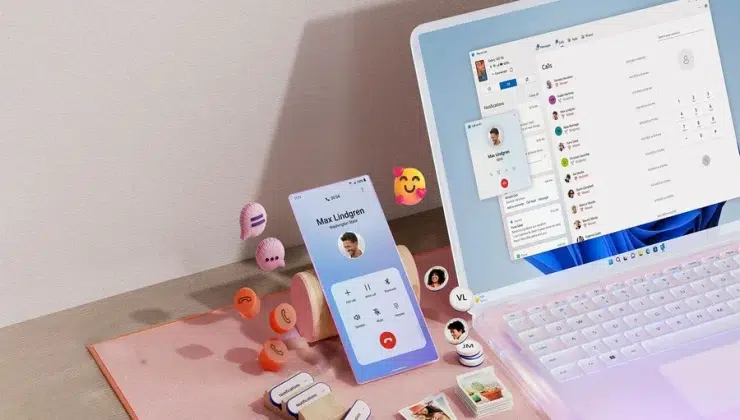
Microsoft (www.aka.ms/PhoneLink) offers an innovative method to help link your Android 10 or iOS phone with your Windows PC, providing simple access to messages, calls, notifications, photos, and mobile applications in one place. Nonetheless, to maximize the potential of Phone Link in 2025 and achieve all the positive benefits of its synchronizing functions, your devices must fulfill specific system requirements.
This comprehensive manual covers all the hardware, software, and network requirements of Phone Link, including compatibility checks, environment optimization, and troubleshooting setup issues. Whether you are a newcomer or a seasoned user updating devices, the most important thing to do is to understand the System’s requirements to achieve consistency, feature-rich, and secure cross-device syncing.
What is Microsoft Phone Link?
www.aka.ms/phonelink is Microsoft’s official URL for launching or downloading the Phone Link app on Windows 10 or Windows 11 PCs, when paired with the “Link to Windows” app on your Android or iOS device. Definitive 2025 Guide to Microsoft phone link system requirements: what you should know to make your Phone and Windows computer work together in perfect harmony. This combination brings a connector that synchronizes messages, calls, notifications, photos, apps, and others, which all appear on your PC screen.
Windows PC System Requirements.
- Operating System Compatibility.
- Windows 10 (October 2022 or later)
- Windows 11 (all versions supported)
- Ensure that your PC is up to date with the following versions.
Minimum Hardware
- Bluetooth 4.0 or more (required to have call management and hotspot capability)
- Synchronization of content via the stable Wi-Fi.
- At a minimum, 4GB RAM and a dual-core processor are required to enable the smooth running of apps.
Smartphone System Requirements.
Android Devices
- Core Phone Link requires Android 8.0 (Oreo) or higher.
- Link to Windows application installed (built-in in Samsung, HONOR)
- Wi-Fi and Bluetooth features turned on.
- Certain functions may require an update to the OS or device model to mirror the app.
iPhone Devices
- iOS 14 (iOS 16 is recommended to be used)
- An App Store app that is installed as a link to Windows.
- Bluetooth is turned on to pair and connect.
- Certain phone link functionality remains unsupported (e.g., no native app mirroring) due to Apple’s restrictions.
Network and Account Requirements.
- The two devices should be connected to the same Wi-Fi network to ensure optimal synchronization.
- It can use mobile data as a backup, which can be charged, but this may lower the quality of the sync.
- Use the same Microsoft account to pair and sync the PC and Phone.
- Ensure that Microsoft services are not blocked by any firewall or VPN software.
Checking whether Your Devices fit the Requirements.
Checking Windows Version on PC.
- Open Settings
- Navigate to System> About
- It should be confirmed that Windows 10 version 19044 or above, or Windows 11, is installed.
Checking Android Version
- Open Settings
- Under About Phone, go to Software information.
- Check the Android version of 8.0 and above.
Checking iPhone iOS Version
- Open Settings
- Tap General > Software Update
- Check if you have iOS 14 or higher.
Permissions Needed to Use Phone Link
| Device | Permissions Required | Purpose |
|---|---|---|
| Android Phone | Bluetooth, Contacts, SMS, Storage, Audio, Network | Enable syncing messages, calls, media files |
| iPhone | Bluetooth, Notifications, Contacts, Messages, Location | Sync notifications, messages, contacts |
| Windows PC | Microphone, Notifications, File Access, Networking | Handle calls, notifications, file syncing |
Granting these permissions is vital for full Phone Link functionality and security.
Set up Environment Optimization.
- Ensure that Microsoft Store applications are regularly updated.
- Connecting devices to a robust 5GHz Wi-Fi network would be preferable in case of higher sync speed.
- Turn off battery optimization or background application restrictions on your Phone.
- Ensure that your PC has the latest Bluetooth drivers to use it for making calls and connecting to hotspots.
Typical Setup Problems in System Requirements.
Issue: Device Not Pairing
- The older versions of the OS that are not up to the minimum requirement (be it PC or Phone).
- Turn off Bluetooth or Wi-Fi on both devices.
- The communication is blocked by VPN/firewall interference.
- Synchronisation problem: Synchronisation of Stops or Delays.
- Poor network connectivity.
- Battery saver modes limit background synchronizing.
- Permission revocation
Problems and Resolutions.
- Update OS to the requirement specifications.
- Relaunch devices and services with updates.
- Install the Phone Link application on both your PC and your Phone.
- Wipe the Phone with the default network settings.
- Support: Check Microsoft forums or contact support through akamsphonelink.com.
Future-Proofing with Phone Link
Maintaining your devices to the most recent Microsoft specifications is a guarantee that you can access future features such as:
- Enhanced AI notifications
- Full iOS mirroring
- Smart Multi-Device Multi-Management.
- Enhanced security of enterprises.
Conclusion
Knowledge and awareness of the correct system requirements for www.aka.ms/PhoneLink enable users to have a rich, seamless device syncing experience with minimal disruption. Windows 10/11 computers and Android 8+/iOS 14+ phones connected to a stable Wi-Fi network and with the proper permissions would form the basis of the fantastic functionality of Phone Link in 2025.
For more detailed instructions, software upgrades, and troubleshooting services, visit https://akaphonelink.com/ and keep your devices connected and up-to-date.