
Home‑Screen Setup, App Sorting & Backup Strategy for Phones
A cluttered phone screen wastes time and drains mental energy. An organized home screen, app sorting method, and reliable backup strategy improve productivity and peace of mind. With just a few changes, users can make their smartphones more efficient and personal. Regardless of which Huawei device you use, proper layout and backup settings can reduce clutter and protect your data security. This guide walks you through smart home screen setups, how to sort and group your apps, and how to secure your important data and media files. Let’s transform your phone into a tool that works for you.
What’s the Best Way to Organize Your Phone Home Screen?
Start with Decluttering Your Home Screen
Begin by removing everything you don’t regularly use from the main screen. Long-press app icons to uninstall or hide those you rarely open. Clear outdated widgets and redundant shortcuts. Keep only the essentials—like messages, calls, camera, and a few daily-use apps. A cleaner screen reduces visual stress and makes it easier to find what matters. Instead of dozens of apps, aim for minimal pages and a tidy layout. Think of it like tidying your workspace—less mess, better focus. Decluttering is the first and most important step in building a smarter, more responsive phone environment.
Choose a Theme or Layout Strategy
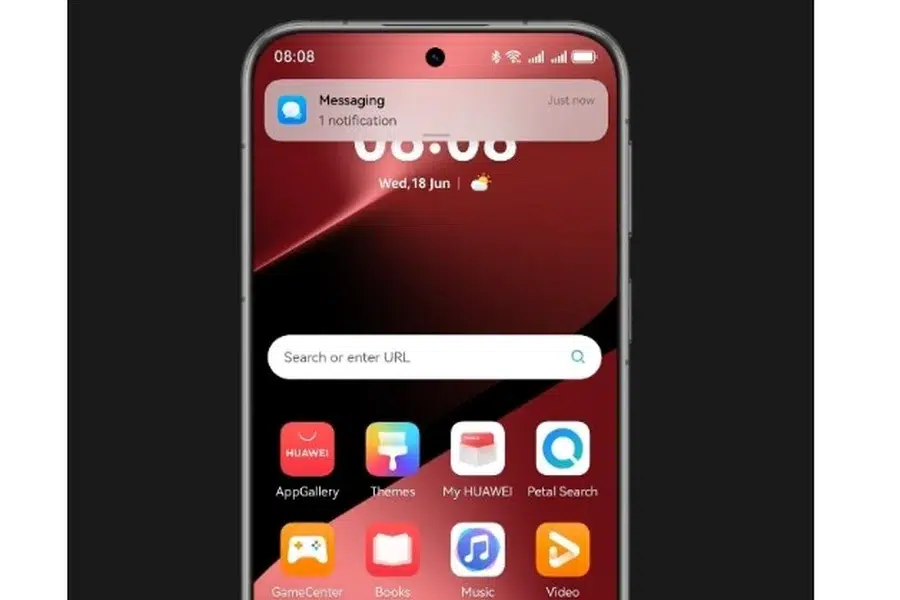
Pick a layout that fits how you think and use your phone. Some prefer a grid with top-used apps at thumb level, while others go for a single-screen setup. You could organize by zones—top for work apps, middle for social, bottom for tools. Choose a visual theme or wallpaper that’s not too busy so your icons stay visible. Matching your layout with how your brain works makes navigation faster. Keep consistency across screens and use similar icon sizes and shapes for a clean look. With a thoughtful theme and layout, your home screen becomes easy and enjoyable to use.
Use Folders, Widgets, and Shortcuts Wisely
Folders help cut clutter and group related apps together—like “Work,” “Health,” or “Finance.” Don’t overfill them; aim for 4–8 apps per folder. Use widgets to get quick info without opening apps—like weather, calendar, or screen time. Stick to a few key widgets and place them where your eyes go first. Shortcuts can speed up daily tasks, like calling a favorite contact or opening your to-do list. Customize these tools based on your habits. When used correctly, folders, widgets, and shortcuts make your home screen both clean and super functional—so you spend less time searching and more time doing.
How Should You Sort and Categorize Your Apps?
Group Apps by Frequency and Purpose
Place your most-used apps on the main screen or in an easy-access folder. These might include social media, messaging, maps, or your camera. Less-used apps can go into labeled folders on secondary pages or in the app drawer. Create categories like “Productivity,” “Shopping,” “Entertainment,” or “Utilities.” This structure helps you find apps faster and reduces time spent scrolling. Don’t worry about perfection—start with your top 10 apps and work from there. Regularly review what you use most and adjust folders as needed. Organizing by both how often and why you use apps is the smartest way to sort them.
Use App Drawer and Search Features Effectively
The app drawer is your digital storage room—don’t ignore it. Keep rarely used or seasonal apps there instead of clogging your home screen. Learn to rely on your phone’s search bar, too. Typing the first few letters of any app is faster than swiping through screens. Many launchers let you customize the app drawer layout—choose alphabetical or custom sort. This keeps things logical and efficient. Pairing the drawer with a smart home screen lets you balance access and tidiness. Think of it as two zones: instant-access apps upfront, and everything else neatly sorted behind the scenes.
Color Code or Alphabetize for Easy Access
Color-coding works great for visual thinkers. Group apps with similar colors together—like blue for social, green for finance, or red for media. This lets your brain find them faster at a glance. Another strategy is alphabetizing, especially inside folders. This adds consistency and removes the guesswork. You could also use a hybrid system: main screen organized by function, folders alphabetized within. Stick to a method that feels natural, and don’t overthink it. These visual or alphabetical systems are quick to set up and even easier to maintain. They make navigating your phone feel smooth, smart, and stress-free.
The Best Backup Strategies for Peace of Mind
Use Cloud Services: HUAWEI iCloud and Others
Cloud backups ensure your phone’s content stays safe even if it’s lost, damaged, or stolen. Services like HUAWEI iCloud automatically sync contacts, messages, notes, and settings. Sign in with your account and enable backups in settings. Choose encrypted cloud providers for better privacy. HUAWEI users can use HUAWEI iCloud to back up phone data, gallery, and more. These services offer restore options during setup, which is helpful when switching devices. Cloud storage removes the fear of losing your digital life and keeps your data always within reach.
Set Up Automatic Backup for Apps and Data
Don’t rely on memory—automate your backups. Most smartphones have an auto-backup setting for apps, call logs, settings, and SMS. On EMUI, find this under “System”> “Backup”. Enable scheduled or continuous backups so your phone handles it in the background. Make sure you’re connected to Wi-Fi to avoid data charges. With auto-backups active, even if you lose your phone or reset it, you can restore everything in minutes. Review backup frequency monthly to ensure it’s capturing new apps or changes. Automating data protection is one of the easiest and smartest tech habits.
Backup Media Files Separately and Securely
Photos, videos, and voice notes take up the most space and carry the most memories. Use services like HUAWEI Gallery Cloud for automatic uploads. These platforms often compress media to save space but offer original-quality storage as an option. Suppose you prefer local copies, back up to an external drive or PC using USB or Wi-Fi transfer. Set reminders to do this weekly or monthly. For sensitive files, use encrypted storage solutions or password-protected folders. Separating your media backups from general data helps avoid sync conflicts and ensures full recovery of priceless memories.
Conclusion
Organizing your phone’s home screen, sorting your apps, and setting up a solid backup system make your digital life simpler and more secure. Start with decluttering, then arrange your home screen with intention. Use folders, widgets, and shortcuts to streamline everyday tasks. Sort apps based on use, and try visual systems like color-coding. If you’re setting up a new device or searching for specific guides—like how to install whatsapp on huawei—having a structured layout makes navigation easier. Finally, don’t wait for disaster—set up cloud and local backups so your data is always safe. Small steps lead to big improvements in how you interact with your phone.