
What to Look for in a USB-C Hub?
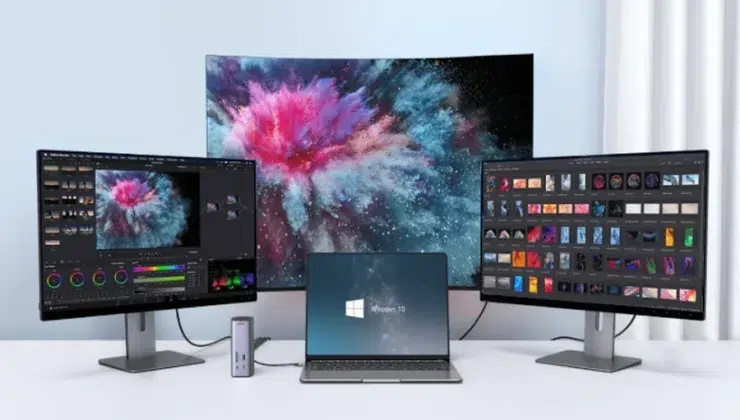
A good USB-C hub should be invisible in daily use, reliable under load, and fully compatible with your laptop.
In practice, the real value of a USB-C hub is not defined by how many ports it offers, but by how consistently those ports work together. Many hubs look impressive on paper yet fall short when driving an external display, charging a laptop, and transferring data at the same time. Stability and compatibility matter far more than port count.
This guide focuses on the factors that actually determine whether a USB-C hub is a reliable tool—or just another accessory you end up replacing.
Port Types and Layout
Before comparing performance or advanced features, it’s important to understand whether a hub offers the right ports in a usable layout. The goal is not to cover every possible interface, but to prioritize the ones you’ll rely on every day.
Essential Ports to Prioritize
Most users should focus on three core port types.
USB-A
Despite the rise of USB-C, USB-A is still essential for keyboards, mice, flash drives, and many accessories. A good hub should provide at least one or two USB-A ports with stable data transfer, not downgraded legacy speeds.
HDMI / DisplayPort
External display support is one of the main reasons people buy a hub in the first place. Whether you’re connecting a monitor at home or a projector at work, HDMI or DisplayPort output must be clearly specified and consistently reliable.
USB-C PD
USB-C Power Delivery pass-through allows the hub to charge your laptop while connected. This is critical if you’re using a single USB-C port for both expansion and power, especially when pairing the hub with a laptop power bank for mobile setups.
Port Placement and Usability
Beyond port types, physical layout matters more than most spec sheets suggest.
Poor spacing between ports can make it difficult to plug in thicker cables or multiple devices at once. Well-designed hubs leave enough room between connectors and place frequently used ports where they’re easy to access. A hub that’s awkward to use quickly becomes frustrating, no matter how capable it looks.
Display Support and Resolution
Display output is one of the most misunderstood aspects of USB-C hubs. Marketing descriptions often sound impressive, but real-world performance depends on clear technical limits.
Single vs Dual Monitor Support
Not all USB-C hubs support dual monitors, even if they have two video ports. Some hubs mirror the same signal across displays rather than extending them.
A reliable hub should explicitly state whether it supports:
- One external display
- Two independent external displays
- Mirror-only output
Vague descriptions usually indicate compromises.
Resolution and Refresh Rate Limits
Resolution claims should always be read carefully.
Many hubs advertise “4K support,” but that doesn’t always mean 4K at 60Hz. In practice, 4K at 30Hz can feel noticeably sluggish for daily work. Look for confirmed support for 4K 60Hz, and prioritize real-world tested performance over theoretical maximums.
Power Delivery Pass-Through
Power delivery is another area where expectations often don’t match reality. Understanding how charging works through a hub helps avoid underpowered setups.
How Charging Through a Hub Works
When you connect a charger to a hub, the hub acts as an intermediary. It reserves a portion of power for its own operation before passing the remainder to your laptop.
This matters if you’re using a high-wattage charger, an iphone charger, or a laptop power bank. The hub must be capable of handling the input power without excessive loss or instability.
How Much Power You Actually Get
A hub rated for 100W PD does not deliver 100W to your laptop.
Typically:
- 10–15W is consumed by the hub itself
- The remaining power is passed through
This means a 100W-rated hub may only deliver 85–90W to your device. For power-hungry laptops, this difference can determine whether the battery slowly drains or maintains charge under load.
Bandwidth and Performance Limits
USB-C hubs share bandwidth across multiple functions. Understanding this shared architecture helps explain why performance sometimes drops under heavy use.
Shared Bandwidth Explained
Display output, USB data transfer, and Ethernet (if present) often operate on the same data lanes. When you connect a monitor and copy large files at the same time, these functions compete for bandwidth.
This is normal behavior, but better hubs manage bandwidth allocation more efficiently and maintain stable performance under load.
When Performance Bottlenecks Appear
You’re most likely to notice limits when:
- Transferring large files while using an external display
- Running multiple peripherals alongside high-resolution video output
In these scenarios, a poorly designed hub may exhibit lag, dropped connections, or reduced display refresh rates.
Build Quality and Heat Management
Physical construction plays a larger role in performance than many users expect. Heat, in particular, is a silent factor in long-term reliability.
Materials and Durability
Metal housings are not just cosmetic. They help dissipate heat more effectively than plastic and generally provide better structural integrity.
Port firmness also matters. Loose connectors can lead to intermittent disconnections that are difficult to diagnose and often mistaken for software issues.
Why Heat Matters in USB-C Hubs
USB-C hubs handle power, data, and video simultaneously, generating heat under load.
Excessive heat can lead to:
- Throttled performance
- Unstable connections
- Shortened lifespan
A well-designed hub manages heat passively and remains stable even during extended use.
Compatibility and Reliability
Even the best hardware fails if it doesn’t work seamlessly with your system. Compatibility should never be assumed.
OS and Chipset Compatibility
Some hubs behave differently across operating systems.
A reliable hub should clearly support:
- Windows laptops
- macOS devices
This is especially important if you’re replacing a traditional docking station with a compact USB-C hub and expect consistent behavior across multiple machines.
Cable Quality and Length
Short, high-quality cables reduce signal loss and improve stability. Longer cables increase resistance and heat, especially during high-power charging or high-resolution display output.
If the cable is permanently attached, its quality matters just as much as the hub itself.
Final Verdict
The best USB-C hub is defined by stable performance, clear specifications, and broad compatibility—not by the longest port list.
A well-chosen hub should quietly do its job, whether you’re powering a laptop through a hub, connecting an external display, charging devices like an iphone charger, or building a mobile workstation that replaces a full docking station. When a hub works properly, you stop thinking about it—and that’s exactly the point.