
How To Uninstall Multiple Programs at Once With IObit Uninstaller 15 (Batch Guide)
Managing multiple programs on your computer can quickly become overwhelming, especially when you need to remove several applications at once. Manually uninstalling each one through Windows Control Panel is not only time-consuming but can also leave behind residual files, registry entries, and unnecessary folders. That’s where 15 comes in — a powerful and intelligent software uninstaller designed to clean your system thoroughly and efficiently.
In this guide, you’ll learn step-by-step how to uninstall multiple programs at once using IObit Uninstaller 15, explore its key features, and understand why it’s a must-have tool for maintaining a clean, optimized PC.
What Is IObit Uninstaller 15?
IObit Uninstaller 15 is the latest version of IObit’s popular uninstallation tool, built to give users complete control over installed software, browser plug-ins, and Windows apps. Unlike the default Windows uninstaller, IObit Uninstaller not only removes programs but also detects and deletes leftover files, registry entries, and hidden components that slow down your system.
It’s lightweight, fast, and comes with advanced features that make it more than just a basic uninstaller. Whether you’re dealing with stubborn programs, bloatware, or multiple apps you want to remove in one go, this tool does it all effortlessly.
Why Use IObit Uninstaller 15?
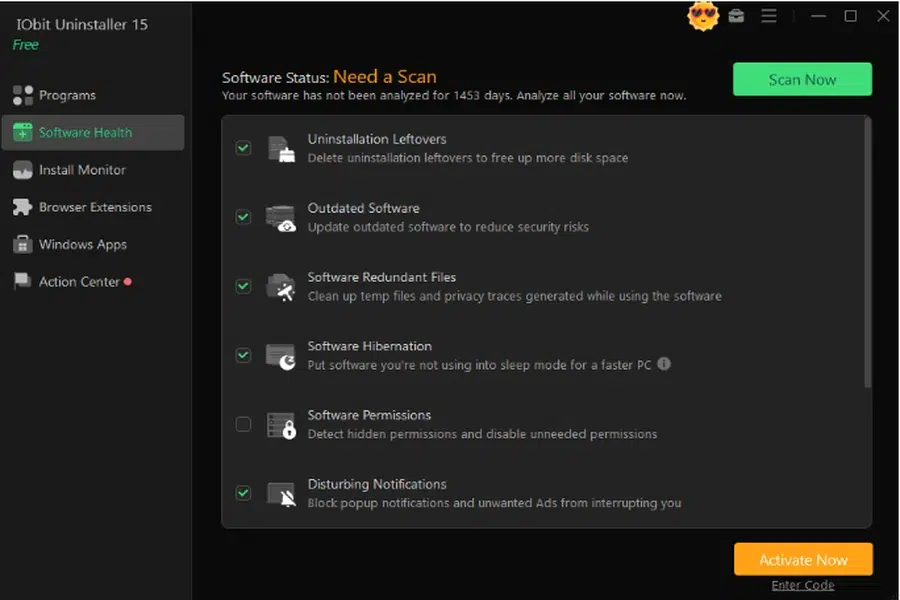
Here are some reasons why stands out from other uninstallers:
- Batch Uninstall Feature – Allows you to uninstall multiple programs at once, saving time and effort.
- Deep Clean Technology – Scans for leftovers after uninstallation to ensure no trace remains.
- Stubborn Program Removal – Forcefully removes programs that Windows cannot uninstall normally.
- Browser Extension Manager – Helps you remove unwanted or malicious browser add-ons and toolbars.
- Software Health Optimization – Monitors outdated software, bundleware, and unnecessary components that affect PC performance.
- Clean & Intuitive Interface – User-friendly design suitable for beginners and professionals alike.
Step-by-Step Guide: How to Uninstall Multiple Programs at Once
One of the most convenient features of IObit Uninstaller 15 is its ability to remove several applications in one go. This “Batch Uninstall” function helps you declutter your PC efficiently. Follow these simple steps:
Step 1: Launch IObit Uninstaller 15
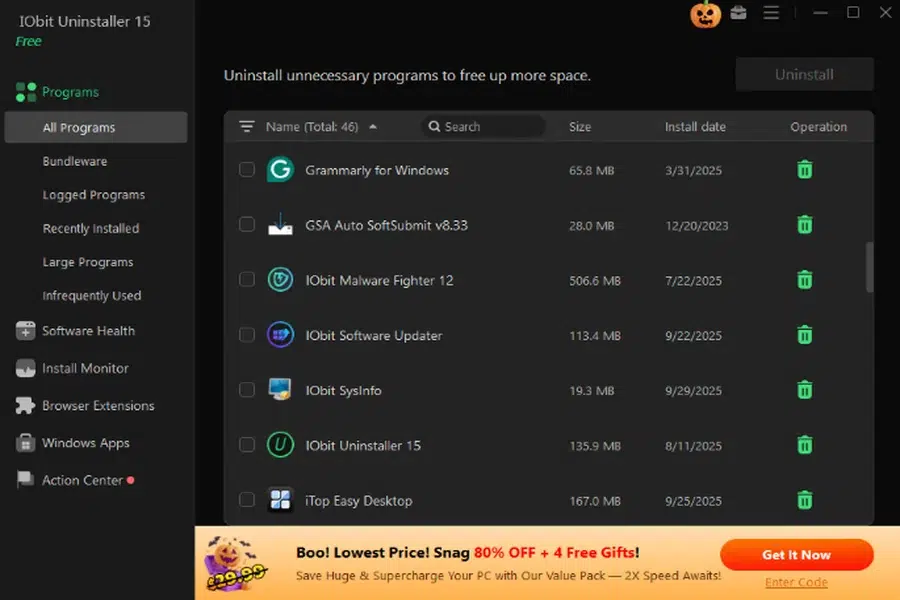
After installing Uninstaller, open the program. You’ll see a clean dashboard listing all the installed software on your system, categorized into sections like “All Programs,” “Large Programs,” “Recently Installed,” and “Rarely Used.”
Step 2: Select Multiple Programs
Go to the “All Programs” section. Here, you can check the boxes next to the applications you want to uninstall. You can also sort by size or installation date to identify which programs are taking up the most space or have been installed recently.
Step 3: Click on “Uninstall”
Once you’ve selected all the programs you want to remove, click the “Uninstall” button at the top of the interface. IObit Uninstaller will start the batch uninstallation process.
Step 4: Automatically Create a Restore Point
Before uninstalling, the software automatically creates a system restore point. This ensures you can roll back any changes if something unexpected happens — a great safety feature for users who like to experiment with software.
Step 5: Uninstallation in Progress
IObit Uninstaller 15 processes each selected program one by one. You can monitor progress in real-time. For some applications, the tool will use their native uninstallers, while for others, it will handle the removal directly.
Step 6: Perform a Deep Clean
After the uninstallation process finishes, IObit Uninstaller 15 scans your system for any leftover files, folders, or registry entries related to the removed programs.
Click “Delete Residual Files” to ensure a complete clean-up. This deep clean step helps reclaim disk space and improves your PC’s performance.
Extra Tip: Remove Bundleware and Stubborn Software
One of the standout features of IObit Uninstaller 15 is its Bundleware Removal capability. It automatically detects programs that were installed in bundles — often without your permission — and lets you remove them in a single click.
If you’ve ever faced programs that refuse to uninstall through normal methods, the Stubborn Program Removal tool comes to the rescue. It identifies hidden or locked files that traditional uninstallers can’t remove and wipes them out completely.
Advanced Features Worth Exploring
Beyond batch uninstallation, IObit Uninstaller 15 offers several advanced features to make your system run smoother:
- Software Updater: Keeps your applications up to date with the latest versions for better security and performance.
- Install Monitor: Tracks changes made by newly installed software, allowing you to reverse them easily.
- File Shredder: Securely deletes confidential files that you don’t want recovered.
- Windows App Manager: Uninstalls pre-installed Windows apps that you rarely use.
- Real-time Install Monitor: Detects and alerts you about unwanted installations or bundleware in real time.
These features make IObit Uninstaller 15 a complete system maintenance package, not just a removal tool.
Benefits of Batch Uninstalling
Uninstalling multiple programs at once isn’t just about convenience—it also improves your computer’s speed, frees up valuable disk space, and reduces clutter. Batch uninstallation through IObit Uninstaller ensures that no leftover files or registry junk remain behind.
It’s particularly useful for:
- Cleaning up after trying several software tools.
- Removing pre-installed or trial programs from new PCs.
- Managing shared computers by decluttering unnecessary apps.
Final Thoughts
If you’re tired of manually removing one program at a time or dealing with stubborn software that refuses to uninstall, IObit Uninstaller 15 is the perfect solution. Its batch uninstallation feature, deep clean technology, and easy-to-use interface make it one of the most efficient tools for maintaining a clean, optimized system.
With the ability to remove multiple programs at once and wipe out residual files automatically, IObit Uninstaller 15 saves time, enhances PC performance, and ensures your system stays clutter-free. Whether you’re a casual user or a tech professional, this software uninstaller is an essential addition to your digital toolkit.