
The Maintenance Task I Used to Avoid Until It Became Automatic

I used to treat PC maintenance like flossing. I knew I should do it, but somehow there was always a reason to put it off until something went wrong.
Cleaning junk files, checking drivers, looking at startup programs, running security scans… none of those jobs sounded particularly difficult. The problem was having to remember all of them in the first place.
That changed when I started using Advanced SystemCare. Now most of the maintenance happens without me having to think about it, which is probably why I’ve actually kept up with it.
Why I Kept Putting PC Maintenance Off
I never really had a single reason for avoiding maintenance. It was more of an accumulation of small annoyances.
I wasn’t always sure what needed fixing, I didn’t particularly enjoy digging through Windows settings, and there was never a routine that told me, “Do these things now.”
Usually, I’d just leave everything alone.
A few things were especially frustrating:
- I rarely knew where to start, so I’d end up doing nothing.
- Manually checking drivers meant searching through settings and menus I wasn’t comfortable navigating.
- I couldn’t always tell whether something was actually affecting performance or whether it was normal.
- Every time I finally decided to maintain the PC, it felt like I was starting from zero.
So maintenance usually happened after there was a problem rather than before one appeared.
What Changed My Mind About Advanced SystemCare
What I wanted was a PC cleaner that could take some of the guesswork out of the process.
Instead of opening five different Windows tools and trying to figure everything out myself, I wanted one place where I could check the system and see what needed attention.
That’s what appealed to me about Advanced SystemCare. It combines cleaning, optimization, security, privacy and other maintenance tools in one interface, so I wasn’t constantly jumping between different settings.
A few things made it easier for me to stick with:
- AI Mode adjusts its recommendations based on my usage and system performance rather than giving every PC exactly the same treatment.
- It supports a wide range of Windows versions, so compatibility wasn’t something I had to worry about on my setup.
The biggest advantage for me was simply being able to see what needed attention and deal with it without having to figure everything out myself.
How I Used Advanced SystemCare
Once I had everything cleaned up, I wanted to make the process simple enough that I’d actually keep doing it.
These are the steps I’ve settled into.
Step 1: Download and Install
I downloaded Advanced SystemCare from the official website. The installer was around 60 MB, so it was a fairly quick download.
I ran the setup, followed the normal installation prompts and opened the program once it was finished.
Step 2: Try AI Mode
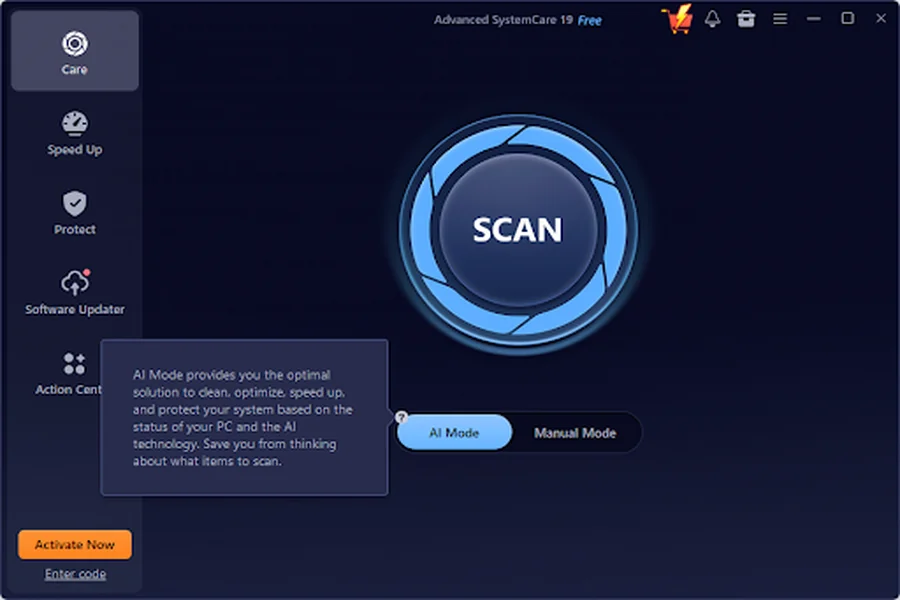
After that, I gave AI Mode a try.
Rather than simply running the same checklist every time, it looks at usage patterns and system performance when making its recommendations.
I went through the suggestions, checked what it wanted to change and approved the ones I was comfortable with.
Step 3: Use Manual Mode When I Want More Control
I don’t always want everything automated, though.
When I want to decide exactly what gets checked, I switch to Manual Mode.
That’s where I can choose things such as:
- Cleaning junk files, leftover program data and invalid shortcuts.
- Checking outdated drivers and software.
- Looking at internet, disk and other system-related issues.
I run the scan, look through the results and then apply the fixes.
Step 4: Turbo Boost & Startup Optimizer
If you’re anything like me, a slow computer is one of the most frustrating things to deal with. That’s where Advanced SystemCare’s Turbo Boost and Startup Optimizer features come in—they’re designed to tackle slowdowns from two different angles, giving your system a real kick in the pants.
Step 5: Protect Sensitive Files With Safe Folder
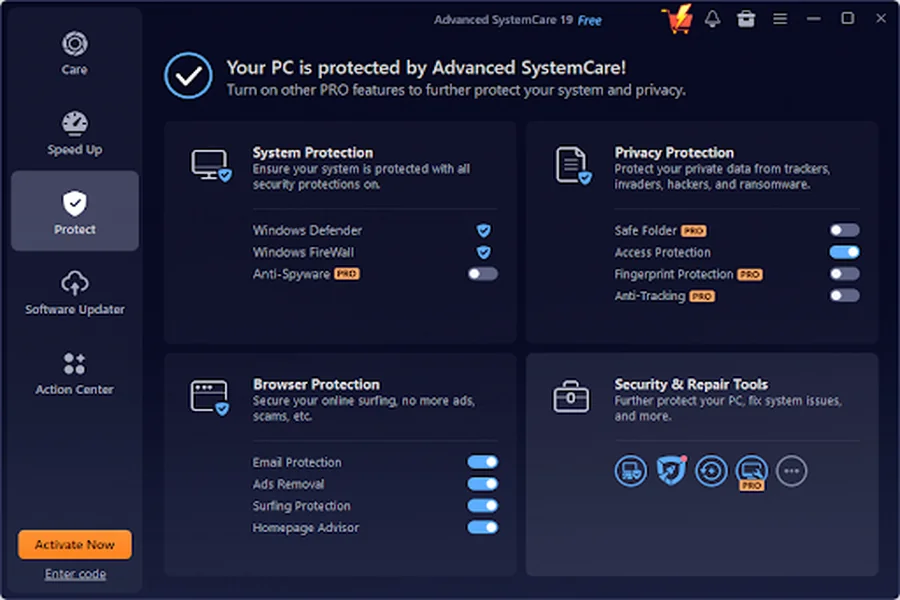
For a few documents I didn’t want sitting in a normal folder, I set up Safe Folder and allow access protection.
I moved the files there and enabled the protection so they’re not just sitting somewhere anyone using the PC could easily access.
It’s one of those features I probably wouldn’t have bothered setting up manually, but because it was already part of the program, I actually used it.
Step 6: Turn On AutoCare
This was the feature that made the biggest difference to my habits.
I enabled AutoCare so routine maintenance could happen automatically rather than depending on me remembering to run the program.
That removed the part I used to hate most: having to think about maintenance in the first place.
What Actually Changed
The most useful change wasn’t one dramatic performance boost.
It was consistency. My PC no longer gradually turns into a collection of old files, unnecessary startup items and overdue updates before I remember to do something about it.
I also don’t have to keep a mental checklist of things I should be checking every few weeks. Some of the routine work is simply handled in the background. That’s made maintenance feel much less like a chore.
Why I Don’t Dread It Anymore
I don’t open Advanced SystemCare now and think, “Great, another thing I have to deal with.” It’s become more of a quick check than a project. AI Mode helps with recommendations, and AutoCare handles much of the routine work in the background — including the basic but essential upkeep you’d expect from a solid PC cleaner. That was really the missing piece for me. I didn’t need more motivation to maintain my PC. I needed a system that made maintenance easier to keep up with. And once most of it became automatic — from clearing junk to optimizing performance there wasn’t much left to put off.