
2025 Best AI Background Tools. Color Swap and Free Background Removal
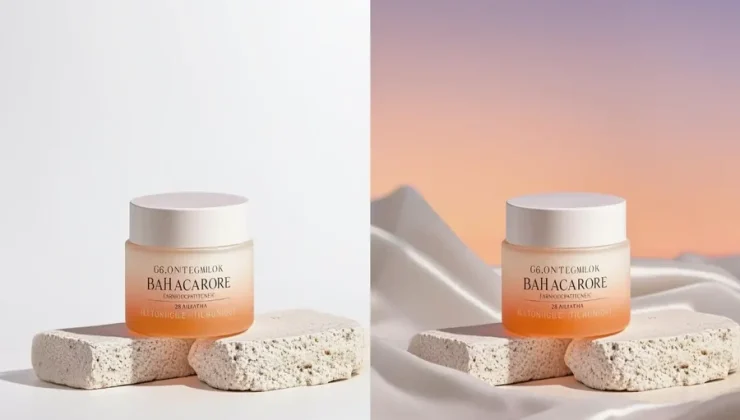
If your images are not performing, the problem is usually not the subject. It is the background. A busy scene distracts buyers, a mismatched color breaks your brand look, and a “good photo” becomes hard to reuse across ads, listings, and social posts.
That is why two background focused tools can deliver outsized results. One is for swapping the background to a clean color fast. The other is for removing the background entirely, so you can reuse the subject anywhere.
Tool 1. Change the background to any color
When you want a clean, consistent look without redesigning everything, a background color swap is the simplest upgrade. It is ideal for product photos, profile images, icons, and any visual where a single color background improves readability.
Use Change background to any color when your goal is speed and uniformity, for example making a whole catalog look like it was shot in the same studio.
Fast steps
- Pick a photo with a clear subject edge. Strong contrast helps.
- Upload the image and select a background color that matches your brand or platform.
- Check edges around hair, fur, thin straps, and corners.
- Download and test the image in the real place you will use it, like a product grid, ad card, or thumbnail.
Competitor snapshot for background color changing
| Option | Best for | Strengths | Tradeoffs |
| Background color changer | Clean single color backgrounds | Fast, consistent, low effort | Complex edges may need retries |
| Canva background tools | Templates plus quick edits | Easy layout and export | Best inside a design workflow |
| Adobe Express | Quick edits with editor handoff | Good for fast content assembly | More steps if you only want a simple color swap |
| Photoshop | Precision control | Highest control for hard cases | Slow for batch work, learning curve |
| Mobile editors | On the go posts | Convenient | Inconsistent output for brand level batches |
Tool 2. Remove the background from an image for free
Sometimes a solid color is not enough. You might need a transparent cutout to place on different backgrounds, add to templates, or build variations for ads. This is where background removal becomes the better tool, because it turns a photo into a reusable asset.
Use remove background from image for free when you want the subject separated cleanly, then reused across multiple designs without repeating the same work.
Fast steps
- Upload the image you want to isolate.
- Run the background removal and zoom in to inspect the edges.
- If you see halos, missing areas, or jagged lines, try a higher quality source image and compare results.
- Export with transparency when you plan to layer the subject onto other backgrounds.
- Keep a small “asset folder” of your most reused cutouts, like products, logos, badges, and people.
Competitor snapshot for background removal
| Option | Best for | Strengths | Tradeoffs |
| Free background remover | Transparent subject cutouts | Fast cutouts, reusable assets | Edge quality depends on source image |
| remove.bg style tools | One click cutouts | Simple and fast for common subjects | Hard cases can be inconsistent |
| Canva background remover | Cutout plus design templates | Great for quick social layouts | Not always optimized for edge perfection |
| Photoshop masking | Complex edges and pro retouch | Maximum precision | Time intensive, skill required |
| Outsourced cutout services | Large batches with strict QC | Human review and consistency | Cost and turnaround time |
When to use which tool
These tools overlap, but they solve different problems.
- Choose a background color changer when you want a uniform look fast, and you do not need transparency. This is common for ecommerce catalogs, ID photos, speaker headshots, and clean social posts.
- Choose background removal when you need reuse. Transparent assets are perfect for templates, seasonal campaigns, overlays, and ad testing where the same subject appears in many versions.
A practical rule. If you will reuse the subject more than twice, remove the background. If you just need the image to look cleaner today, change the background color.
Wrap up. Two tools, two clear wins
Background work is where most time gets wasted, and where small improvements create the biggest visual lift. Use a background color swap to standardize your look quickly. Use background removal to create reusable cutouts that scale across designs. Pick the tool that matches your bottleneck, test it on one image, then repeat it on a batch of five to lock in a repeatable process.